 Windows)
Yes.
New features in iCorrect EditLab Pro include:
You are eligible for the upgrade if you have previously purchased the iCorrect EditLab plug-in. You will not be issued a new serial number if you purchase the upgrade, so you must already have a valid iCorrect EditLab plug-in serial number. Detailed instructions to help you find your serial number can be found here.
Strictly speaking, iCorrect EditLab Pro should run with any host application that fully supports the Adobe Photoshop plug-in architecture. Our tests have shown the following programs to be suitable: Photoshop 5, 6, 7 and CS, Photoshop Elements 1 and 2, Photoshop LE 5, ImageReady 3.0.1, Photo Deluxe HE 3.1 and 4, Paint Shop Pro 7.04 and 8 and Canvas 8. Note that there are differences in the way these programs function when selections are used. We recommend that iCorrect EditLab Pro be used without selections.
If you have purchased the iCorrect EditLab Pro plug-in, it cannot be run by itself. A plug-in must be run from within another program (a "host" program) such as Adobe Photoshop. (Note that iCorrect EditLab Pro may also be purchased as a standalone application, which does not require a "host".) In order to allow the plug-in to run with your host programs, it must be installed by hand into each of those programs. You should consult the documentation for each of your host programs to learn how plug-ins are installed. Typically, this involves copying the iCorrect EditLab Pro plug-in file into the application's "Plug-ins" folder.
Further detail may be found here.
Click here for complete, step-by-step instructions.
You may get an error if you have chosen a "bad" profile for your RGB working space. Here is the error message you will get:
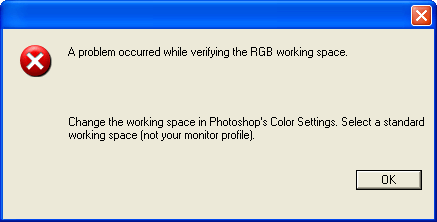
Be sure you have selected a normal profile for your RGB working space, such as sRGB or Adobe RGB (1998). Never select a monitor profile for your working space.