


|
|
|
|
|
The left side of the EditLab window is used to display the preview image. The Preview checkbox is used to control whether the preview image is displayed before or after edits:
Initially, the checkbox is checked, and the preview image displays the effects of the current color corrections. To compare this corrected image with the original image, you can move the EditLab window aside to uncover the original image in Photoshop, or more conveniently, you may uncheck the Preview checkbox to display the uncorrected image within the EditLab's own window. You may find it useful to check and uncheck the Preview image checkbox, watching the preview image toggle back and forth between the corrected and uncorrected versions.
Zooming may be used to magnify the preview image to a 1:1 pixel view. If you hold down the key, the Zoom In cursor will be displayed in the middle of a Zoom box, representing the area to be enlarged:
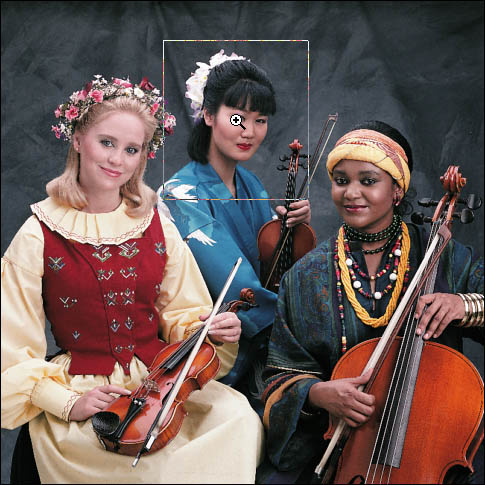
To display the new view, drag the center of the Zoom box over the image area you wish to magnify, then click on the mouse. If the Zoom In cursor does not appear, that means one of two things: a) that the image you are editing is small enough to entirely fit in the Preview panel at 1:1, or b) that there is not enough memory available to support the zooming feature. You can zoom back out to the original view by again holding down the key and clicking anywhere in the image area.
Scrolling a zoomed image is done by holding down the Control key while dragging on the Preview image. The "hand" cursor indicates that scrolling will occur:

Numeric pixel values in the preview image may be examined using the mouse. The displays below the edit tool panel show the pixel values for the color under the cursor.
HSB (hue, saturation and brightness) values are initially displayed, but if you prefer to see RGB (red, green and blue) pixel values, you can click anywhere in the pixel value display area to switch to RGB values. Clicking a third time switches to CMYK (cyan, magenta, yellow, black). Further clicks start this cycle over again.
Note that the CMYK display shows the values you would obtain if you convert your RGB image to CMYK in Photoshop. The values are determined from Photoshop's CMYK Color Settings. iCorrect EditLab cannot be used on CMYK images, only RGB images.
Each color component is shown in two forms, separated by a slash character. The number on the left is the color before edits (corresponding to the image displayed when the Preview checkbox is not checked) and the number on the right of the slash is the color after edits have been applied (corresponding to the image displayed when the Preview checkbox is checked).
The cursor may be set to display average values by clicking the eyedropper icon to the left of the digital displays. As you click on the icon it will alternate among these three icons, which correspond to a single pixel sample, a 3 × 3 pixel area average, and a 5 × 5 pixel area average:

The eyedropper sampling size affects only the numeric RGB, HSB or CMYK display. It is not used when clicking image colors in the various editing tools (a different technique is used which will be explained later).
Normally, you will probably want to view the net result of all of the edit tools together, but there may be times that you want to see only what the current tool is doing. Clicking the down arrow at the bottom of the tool panel will extend the tool panel to include the Preview checkbox and the pixel readouts, indicating that the preview image and readouts reflect only the effects of the current tool.
An up arrow appears that can be clicked to return to the smaller tool panel, where the preview image and pixel readouts reflect the combined effects of all of the editing tools.
|
|
|
|
|