


|
|
|
|
|
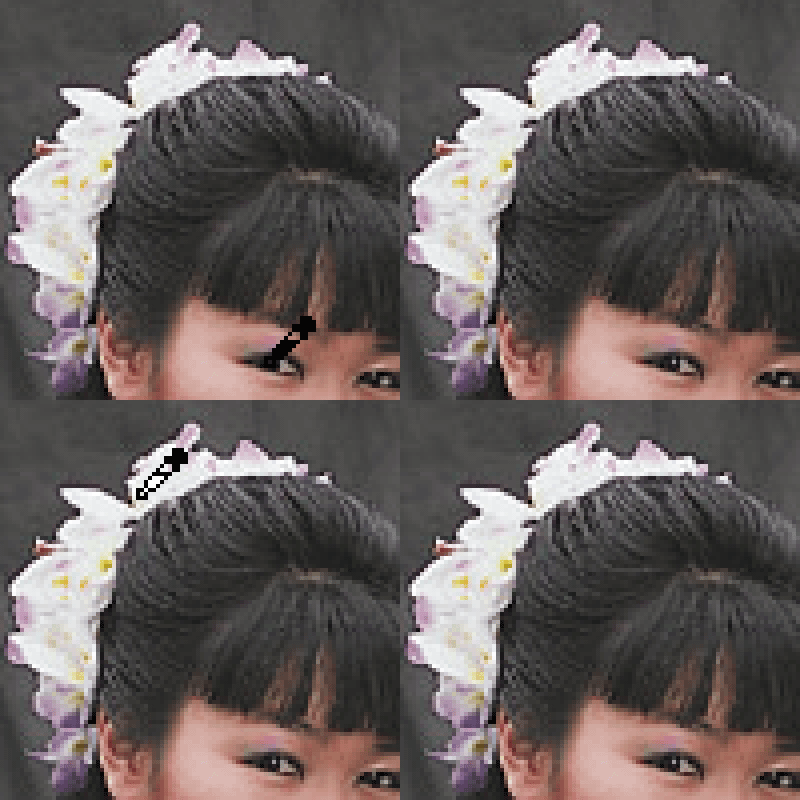
You may also select the black and/or white point directly from an image by pointing and clicking.
EditLab will automatically determine if the color you mark is to be the black point or white point, by seeing if it is a dark or light color. The cursor appearance indicates which it is:
Clicking the Reset button within the edit tool panel will set the black point to zero and the white point to 100 (the values that cause the lightness range to remain unchanged).
Note that if the master SmartColor checkbox is enabled, whenever the black or white point is changed, the controls in the Brightness/Contrast/Saturation and Hue Selective tool panels will be automatically recomputed based on an analysis of the newly corrected image.
|
|
|
|
|