


|
|
|
|
|

Next in line is the Brightness/Contrast/Saturation tool.
The Brightness and Contrast sliders may be used to redistribute the tones between the selected black and white points. The Saturation slider may be used to increase or decrease the saturation of all non-neutral colors.
The sliders are simple to use. You just make a judgement call as to whether you want more or less brightness, contrast and/or saturation. Adjust the sliders to the right for more, or to the left for less, as illustrated below:
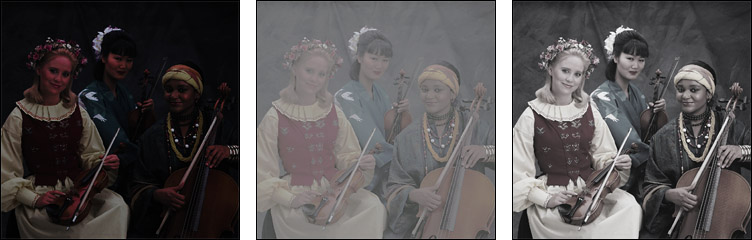
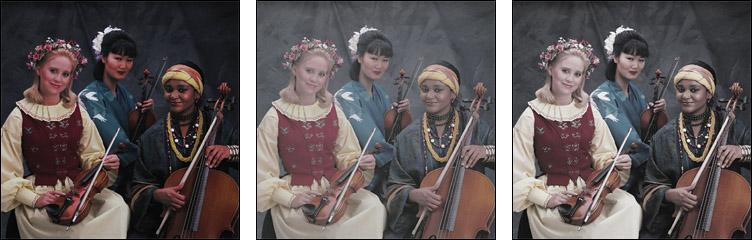
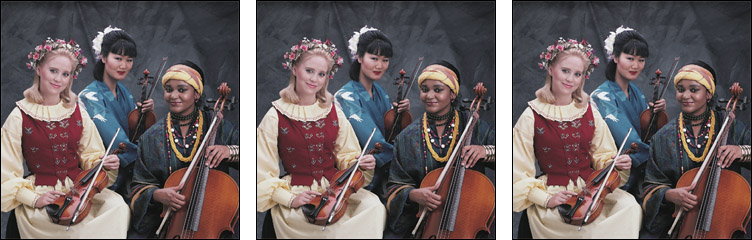
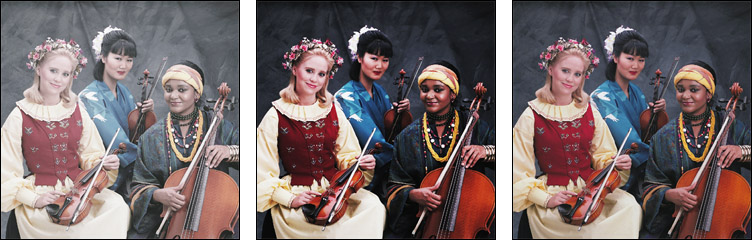
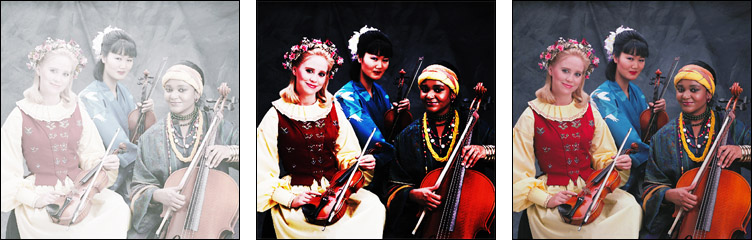
As you adjust a slider you will see the effect in the Preview image. Based on the appearance, make further adjustments as necessary. If you find that the sliders do not respond quickly enough, you can change their behavior using the Preview Sliders checkbox which is described in the Preferences section of this User Guide.
Clicking the SmartColor button will automatically determine settings for the Brightness and Saturation sliders. (There is no automatic contrast correction.) If the master SmartColor checkbox is checked, this will already have been done for you, providing a good starting point for further adjustments, if necessary. The SmartColor Brightness uses a center-weighted metering system, much like you might find on a good 35mm SLR camera. The SmartColor Saturation aims to achieve the saturation level you have set as the Preferred Saturation in the Preferences panel. See the Preferences section of this User Guide if you wish to change this aim value.
If you click the small arrow to the left of the Brightness and Contrast sliders, you will see a small graph indicating the shape of the curve produced by the combined brightness and contrast settings:
This graph is for viewing purposes only. You cannot use it to manipulate the curve shape. Click the arrow a second time to remove the graph.
Note that if the master SmartColor checkbox is checked, adjusting any slider causes each of the subsequent controls in this panel, as well as those in the Hue Selective tool panel to be automatically recomputed, based on an analysis of the newly corrected image.
Clicking the Reset button will remove all brightness, contrast and saturation edits.
|
|
|
|
|